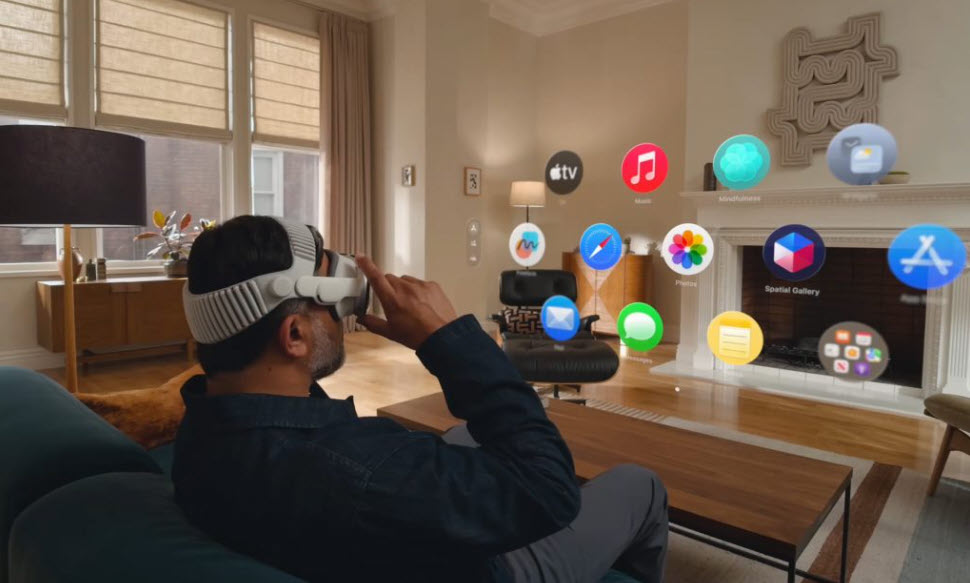
After spending time with the Vision Pro and exploring its core interaction methods, I’m convinced Apple’s approach to natural scrolling is a meaningful step forward for spatial computing. On Apple Vision Pro, the system combines subtle hand gestures, eye tracking, and spatial awareness to make interacting with virtual content feel intuitive rather than mechanical.
That said, there are situations where natural scrolling can become problematic. For example, if you connect to a Windows PC through a remote desktop session to review a long Excel spreadsheet, the scroll direction can feel counterintuitive. Moving your gesture downward causes the spreadsheet to move in the opposite direction from what many Windows users expect, so while scanning hundreds of rows, you may repeatedly scroll the wrong way and lose your place. Then, a better option would be to disable Natural Scrolling to change the scrolling direction on Apple Vision Pro.
How to change the Scrolling direction on Apple Vision Pro?
Natural scrolling on the Vision Pro is Apple’s attempt to mimic how we scroll through physical objects in the real world. It makes the experience of Gliding through complex 3D interfaces as naturally as flipping through a magazine with controllers, or complicated gestures, just using your hands and intuitive motion. This enables you to navigate content fluidly and precisely.
The magic lies in the tight integration between your eyes and hands. As you glance at a scrollable widget or document, your hand’s subtle movements (whether sliding a fingertip, swiping your palm, or gently pushing) translate immediately into smooth, real-time scrolling. It’s as if you’re physically tugging or pushing that content. The result? An interaction that feels intuitive, effortless, and remarkably fast to learn. For users, that means less fumbling and more focus on the content itself, whether it’s reading a document, browsing a rich 3D catalog, or interacting with layered AR elements.
This natural approach bypasses the clunky, artificial input methods of previous VR and AR systems, making spatial computing accessible to a broader audience, including those less technically savvy or with physical limitations. There’s a catch though – Natural Scrolling assumes the user thinks in terms of moving the page with your fingers. Desktop users often think in terms of “moving the scrollbar.” The mismatch causes errors when workflows cross devices.
Open the Settings app on your Apple Vision device.
Navigate to the ‘Eyes and Hands’ on the left.
Switch to the right to locate ‘Look to Scroll’ option.
Switch the toggle off.
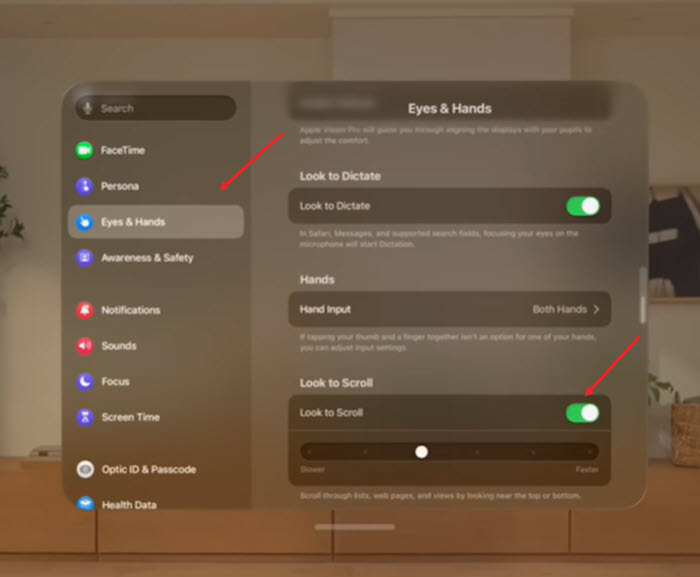
Once you complete these steps, the scrolling direction will be reversed to match traditional scrolling behavior. This means scrolling up will move the content up, and scrolling down will move the content down, similar to how a standard mouse or trackpad works.
Real-World Scenarios: When Natural Scrolling Shines
Here are scenarios where Apple’s natural scrolling notably enhances daily use:
- Browsing 3D Catalogs: Whether inspecting furniture, vehicles, or architectural models, being able to scroll through 3D content as if turning pages or spinning an object by hand provides unmatched intuition. It lets you effortlessly zoom in, pan, and scroll details without breaking immersion.
- Reading Immersive Documents: Natural scrolling replicates flipping through a book or magazine projected onto your environment. There’s no fumbling with buttons or complicated gestures, just a simple hand swipe as you’d do with a physical paper.
- Navigating AR Spaces: Switching apps or scrolling through layered menus anchored over physical space becomes a smooth, seamless experience. The physicality of the scroll movement reduces cognitive load during multitasking or complex interactions.
- Creative Work: Artists and designers can scroll through tool palettes, timelines, or layered 3D elements like physical sliders or dials. This tactile approach fosters creativity and precision in virtual environments.
- Accessibility Applications: For users with limited mobility, natural scrolling lowers barriers to engaging with virtual interfaces, opening new opportunities in education, therapy, and communication.
How Does Vision Pro’s Natural Scrolling Compare to Competitors?
Spatial computing platforms have experimented with different approaches to scroll input, but Apple stands out through its elegant fusion of eye and hand tracking:
| Criterion | Apple Vision Pro | Meta Quest Pro | Microsoft HoloLens 2 |
|---|---|---|---|
| Input Method | Hand tracking + eye tracking | Controllers + limited hand tracking | Hand gestures + voice commands |
| Scroll Smoothness | Exceptionally fluid, low latency | Moderate, occasional jitter | Less smooth, noticeable lag |
| Integration of Inputs | Tight eyes + hands synergy | Controller dominated | Separate hand/voice inputs |
| Accessibility | High – subtle motions, intuitive | Medium – controller required | Medium – complex gesture sets |
| Spatial Precision | High – accurate 3D mapping | Good but sometimes laggy | Good, sensor range limited |
| User Feedback | Visual and subtle haptic illusions | Controller vibration | Visual only |
| Developer Support | Robust API for custom gestures | Growing, somewhat fragmented | Enterprise-focused, mature |
Apple Vision Pro offers a uniquely immersive scroll experience by combining precise eye and hand input to locate and smoothly manipulate objects in 3D. In contrast, Meta Quest Pro relies primarily on physical controllers, which limits immersion and can introduce latency. HoloLens 2 uses hand gestures and voice, but these can feel less fluid and impose a steeper learning curve for scrolling subtleties.
Apple’s approach reduces friction and feels inherently accessible, setting a new UX standard for spatial computing.