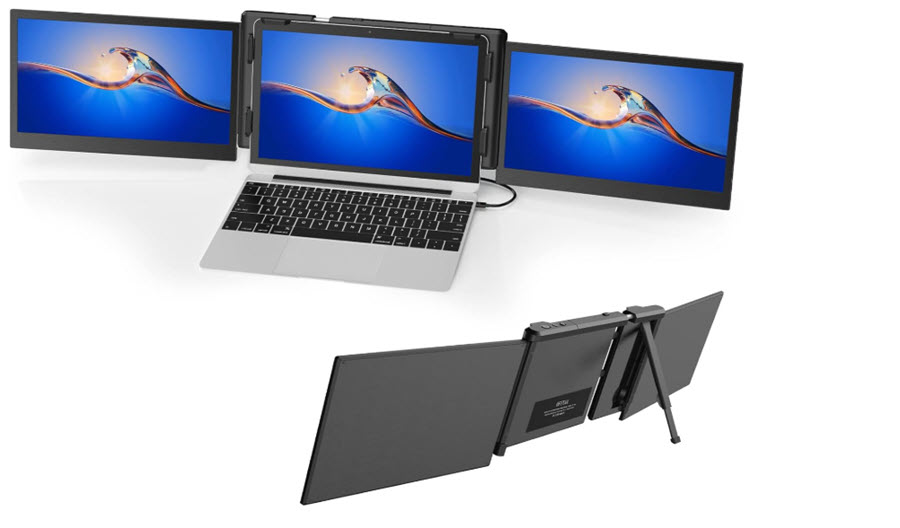
When I bought my affordable 1080p monitor to pair with my MacBook Pro, I thought I got a steal. After all, on paper, it checked all the boxes: a decent size, Full HD resolution, and a budget-friendly price. But after a few weeks of use, the vibrant Retina display on my Mac felt frustratingly mismatched next to this monitor, and my workflow took an unexpected hit. If you’re considering a 1080p monitor for your Mac, especially if you’re a creative professional or someone who relies heavily on crisp visuals, here’s what I learned the hard way.
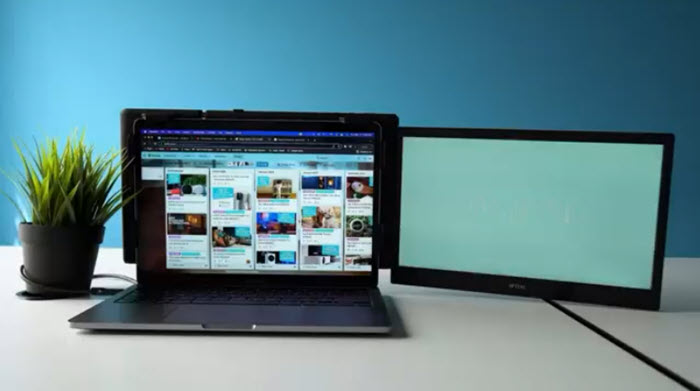
1080p monitor for MacBook Pro
1. The Promise vs. the Reality
The lure of snagging a budget 1080p monitor for your Mac is very real: these monitors are inexpensive, widely available, and often boast attractive specifications for casual use. Many Mac users—in an effort to extend their screen real estate without breaking the bank—jump straight into buying these monitors, expecting a seamless experience. The reality, however, doesn’t always live up to the promise.
Soon after setting up my 1080p monitor, I noticed glaring issues. Colors looked off, text wasn’t as sharp as my MacBook’s bright Retina display, and window scaling felt clunky and unnatural. The once-beautiful Retina screen felt almost painful to use side-by-side with this lower-resolution panel. If you’ve experienced this jarring mismatch, you’re not alone. The reason is that macOS and Apple’s Retina technology are closely tied to specific resolutions and pixel densities that 1080p monitors just can’t match.
2. Understanding Mac’s Retina Display and Scaling
Apple’s Retina technology is more than a marketing term for high resolution—it’s about pixel density and how macOS smartly scales content for visual fidelity. Retina displays pack so many pixels into each inch that individual pixels are essentially invisible to the naked eye. This makes text, images, and graphics appear razor-sharp and incredibly smooth.
Take the MacBook Pro, for example—it has a native resolution of up to 2560×1600 on a 13-inch display, resulting in a pixel density around 220 PPI (pixels per inch). MacOS uses a clever scaling system that renders the UI at double or fractional pixel sizes to maintain consistent physical element sizes while ensuring everything looks crisp and clear.
When you connect an external non-Retina monitor, especially one with a native 1080p resolution and a lower PPI, macOS struggles to apply these same scaling tricks properly. This leads to fuzzy fonts, weird blurriness, or UI elements that are either too small to read comfortably or stretched awkwardly. The end result is a subpar visual experience that detracts from the otherwise polished macOS interface.
3. The Downsides of 1080p Monitors with Macs
From personal experience and research, several specific issues arise when pairing a 1080p monitor with a Mac:
- Scaling mismatches: macOS does not natively support Retina scaling at 1080p resolutions, so UI elements often appear blurry or oddly sized. Users are caught between tiny text that strains the eyes or larger text that looks blocky and fuzzy.
- Color accuracy limitations: Budget-friendly 1080p monitors rarely come factory calibrated. Their color gamut often sticks to basic sRGB coverage and lacks the wider P3 gamut that Macs natively support. This results in dull or inaccurately saturated colors, making color-dependent tasks difficult or impossible to trust.
- Low pixel density: A typical 24-inch 1080p monitor runs around 90–110 PPI, significantly lower than Retina displays (~220 PPI). This means images and text lose detail and sharpness, which is painfully obvious sitting next to a Mac’s native screen.
- Contrast and display uniformity issues: Cheaper 1080p panels tend to struggle with uneven backlighting, limited contrast ratios, and subpar black levels, leading to washed-out visuals and glare.
- Input lag and refresh rate concerns: While fine for basic productivity, some budget monitors can exhibit minor flickering or lag, which may frustrate video editors or those working with fast-motion content.
Collectively, these drawbacks make daily use frustrating, reducing productivity and causing eye strain.
4. Productivity and Creative Work Impacts
For creative professionals and productivity power-users, these issues are more than mere annoyances—they directly impact work quality and efficiency.
Consider photo and video editing, design, or even extensive document writing:
- Color fidelity matters: Accurate colors are foundational when color grading footage, editing photos, or creating designs. A monitor that can’t replicate your Mac’s P3 wide gamut display means second-guessing your edits or wasting time on recalibration.
- Sharpness and detail: Lower resolution means less workspace and less visual clarity. You’ll find yourself zooming in on images or documents more often, interrupting workflow.
- Multitasking challenges: The limited resolution restricts how many windows or applications you can comfortably view side-by-side, reducing the benefits of a second screen.
- Eye strain: Fuzzy text and smaller fonts cause fatigue during long work sessions, degrading productivity.
Ultimately, a 1080p external monitor can become a bottleneck for anyone serious about color accuracy, image clarity, or efficient multitasking.
5. Comparing Alternatives: 1080p vs 4K, Retina, and Apple’s Own Displays
If a budget 1080p monitor isn’t ideal, what are the better options? Here’s a side-by-side comparison highlighting key points for Mac users:
| Feature | 1080p Monitor | 4K Monitor (3840×2160) | Apple Retina Display |
| Resolution | 1920×1080 | 3840×2160 | Varies; e.g., 2560×1600 (MacBook Pro) |
| Pixel Density (PPI) | ~90–110 (depends on size) | ~163–200+ | ~220+ |
| Color Support | Mostly sRGB, limited gamut | Many with P3 wide gamut | Native P3 wide gamut, True Tone |
| macOS Scaling Support | Poor or none | Much better, supports Retina scaling | Native, perfect |
| Contrast & Uniformity | Variable, often poor | Generally excellent (IPS panels) | Excellent, factory calibrated |
| Connectivity | Mostly HDMI/DisplayPort | USB-C/Thunderbolt, HDMI | Thunderbolt / USB-C |
| Refresh Rates/Input Lag | Basic, varies | Better options available | Excellent |
| Price Range | |||
| Build & Design | Varies, often plastic | Higher-end models available | Premium, minimalist design |
4K monitors present a sweet spot for Mac users seeking Retina-like sharpness along with solid color performance at a reasonable price point. Apple’s own displays, such as the Studio Display, offer the ultimate seamless experience but come at a premium price.
6. Recommendations: What to Look For in a Mac-Friendly Monitor
If you’re on the hunt for a Mac-compatible external display, here are the key attributes to prioritize:
- 4K resolution or higher: This enables macOS to natively apply Retina scaling, ensuring crisp fonts and UI without fuss.
- High pixel density (PPI ~150+): Avoid pixelation and achieve clarity closer to built-in Retina screens.
- P3 wide color gamut support: Matching your Mac’s native color profile ensures color consistency and trustworthiness in creative work.
- True Tone compatibility or hardware calibration capabilities: For natural color rendering and adaptable brightness.
- Modern connectivity: USB-C or Thunderbolt ports simplify connections by delivering video, data, and power through one cable.
- Good build quality and aesthetics: Brands like LG’s UltraFine line, Eizo, and BenQ offer Mac-tailored options with reliable calibration and minimalistic designs that complement Apple hardware.
- Budget considerations: While Apple’s own monitors are premium-priced, many 4K monitors optimized for Mac offer excellent value.
In my experience and through broader community feedback, investing upfront in a higher-quality monitor designed to complement Macs pays dividends in productivity, comfort, and output quality.
7. Conclusion: When a 1080p Monitor Might Still Make Sense
I’m not saying every Mac user should avoid 1080p monitors entirely. If you mainly need a secondary screen for occasional browsing, watching videos, or light document editing, and you’re constrained by budget, a 1080p monitor can suffice.
However, if you value sharp text, precise color, and seamless integration with macOS for creative or productivity-intensive work, it’s worth steering away from 1080p. The visual compromises and user experience issues often cost more time and frustration than the initial savings.
Looking back, my purchase of a 1080p monitor alongside a MacBook Pro was an eye-opening experience: the initial “steal” translated into reduced productivity and noticeable eye strain. A better-matched 4K or Retina-quality monitor would have saved me time and preserved visual comfort.
So, think twice before settling on a 1080p display for your Mac setup. Your eyes—and your work—deserve better.