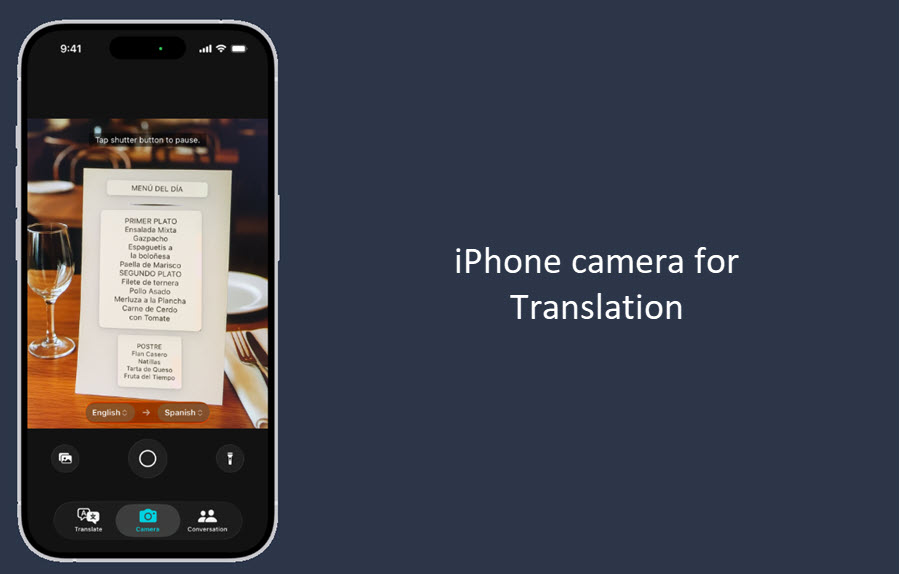
In today’s interconnected world, smartphones have become powerful tools that can assist us in various ways. With the advancement of technology, using your iPhone camera as a translator is not only convenient but also incredibly helpful when you are faced with a language barrier. This guide will walk you through the steps on how to leverage your iPhone camera for translation purposes effectively.
Benefits of Using iPhone Camera for translation
Utilizing your iPhone camera for translation purposes offers a multitude of benefits for users in various scenarios. Whether you are a frequent traveler navigating foreign lands, a language enthusiast eager to expand your linguistic repertoire, a student striving for convenient language support, or a business professional engaging with international clients, the ability to translate text seamlessly can greatly enhance your interactions and overall experience.
The convenience of instant translation at your fingertips can help alleviate the common pain points faced by many, such as the frustration of language barriers while traveling, the challenge of finding accurate translations quickly, and the need for real-time communication in diverse settings. By harnessing the power of your iPhone camera, you can overcome these obstacles and communicate effectively in any language.
How to Translate Text Using iPhone Camera
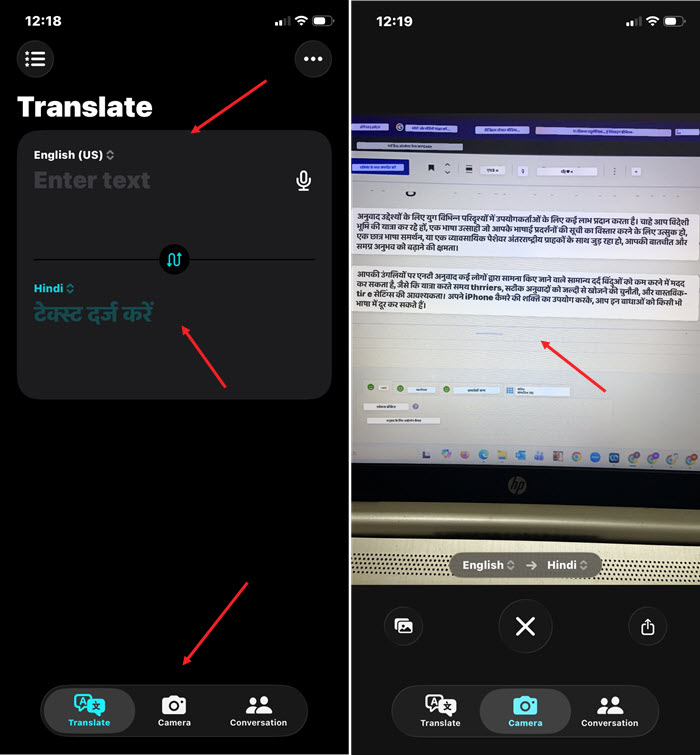
- Open the Translate app on your iPhone.
- Pick your “From” and “To” languages at the top.
- Then tap the Camera icon at the bottom of the screen and point your phone at the text you want to translate.
- You’ll see the translation appear instantly on your screen. If you want a clearer view, tap the shutter button to freeze the image.
- From there, you can tap the translated text to copy it, save it as a favorite, or have it read out loud.
Capturing and Translating Text
When faced with foreign text that requires translation, simply open the Camera app on your iPhone and focus the camera on the text you wish to translate. The device will automatically detect the text and You should see a yellow frame should appear around the text.
A new button will also show up either in the bottom right corner of the viewfinder, or the top right if you’re holding your iPhone in landscape mode.
Just tap the button and wait for it to provide you with the translated version on the screen in real-time, making it easy to understand unfamiliar languages on the go. The functionality is very much similar to Snipping tool that lets you extract text from pictures using OCR technology.
Language Options and Settings
Explore the language options available on your iPhone camera for translation and customize them to suit your preferences. From selecting the source language to choosing the target language, you can tailor the settings to ensure accurate and relevant translations based on your specific needs.
Stay tuned for the subsequent part of this guide, where we delve into how to translate real-time conversations using your iPhone camera, share tips for effective translation, and highlight other useful features of translation apps to further enhance your language translation experience.
To embrace the full potential of your iPhone camera as a translator, make sure to explore the various functionalities and settings offered by translation apps and stay tuned for more insights in the following sections. Don’t let language barriers hinder your communication. Empower yourself with the capabilities of modern technology for seamless translation on the go.