There’s something particularly frustrating about having a perfectly functional internet connection but being unable to access Apple’s services. Your browser loads websites, YouTube plays videos without a hiccup, and everything else seems perfectly normal. Yet, the moment you open the App Store or try signing in to iCloud, your MacBook refuses to cooperate. Even stranger? Switch to another Wi-Fi network, and everything starts working again.
That’s precisely the problem one of my friends encountered with his MacBook Air. He could access Apple’s services using his office network, but his home Wi-Fi was a different story. The App Store wouldn’t connect, iCloud kept running into problems, and nothing seemed to explain why.
He initially wondered whether his MacBook was getting too old or whether Apple had quietly stopped supporting it. After trying several possible fixes and waiting a few days for things to sort themselves out, he was still stuck.
The interesting part was that the problem wasn’t necessarily with his MacBook. Since Apple’s services worked perfectly well on another network, the home router, DNS configuration, or network security settings were more likely suspects.
If you’re experiencing something similar, don’t rush to reinstall macOS or take your MacBook to a repair shop. There are several network-related settings worth checking first.
One important clarification before we begin: the original MacBook was running macOS High Sierra 10.13.6. That is an old operating system, not a recent macOS release. Older versions can have compatibility and security limitations, so updating to the newest macOS version supported by your Mac is worth considering. However, when Apple services work on another network but fail on your home Wi-Fi, investigating the network is a sensible starting point.
MacBook Can’t Connect to the App Store or iCloud
Here’s what you can try.
1. Check Apple’s System Status Before Troubleshooting
Before changing anything on your Mac, make sure Apple isn’t experiencing an outage.
Yes, sometimes the problem really is at Apple’s end, and no amount of restarting your router will convince a server to come back online.
Open Apple’s System Status page and look for services such as:
- App Store
- Apple Account
- iCloud Account & Sign In
- iCloud Drive
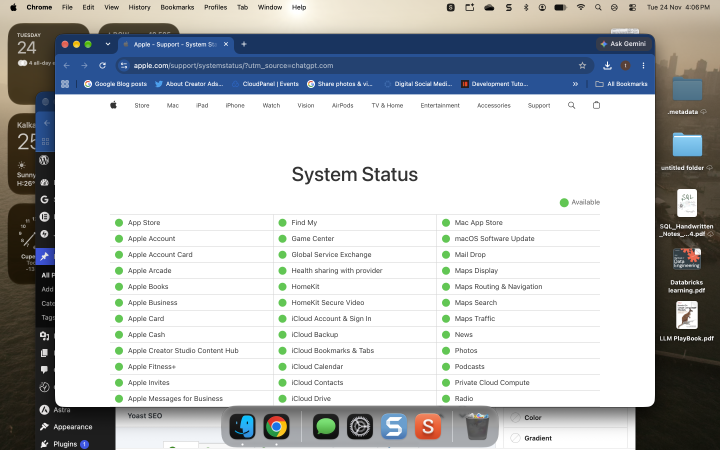
If any relevant service reports an outage, wait until Apple resolves it and try again.
If everything is operational, move on to the next step. Apple Support (IN)+1
2. Check Your Mac’s Date and Time Settings
This might sound like an unusually basic troubleshooting suggestion, but an incorrect date or time can interfere with secure connections.
Services such as iCloud and the App Store use digital certificates to establish secure connections. These certificates have validity periods, and your Mac needs reasonably accurate time information to verify them.
Here’s how to check:
- Click the Apple menu in the top-left corner of your screen.
- Open System Settings (called System Preferences on older macOS versions).
- Select General and then Date & Time.
- Enable the option to set the date and time automatically.
- Make sure the correct time zone is selected.
If you’re using macOS High Sierra, open System Preferences > Date & Time and look for the automatic date and time setting.
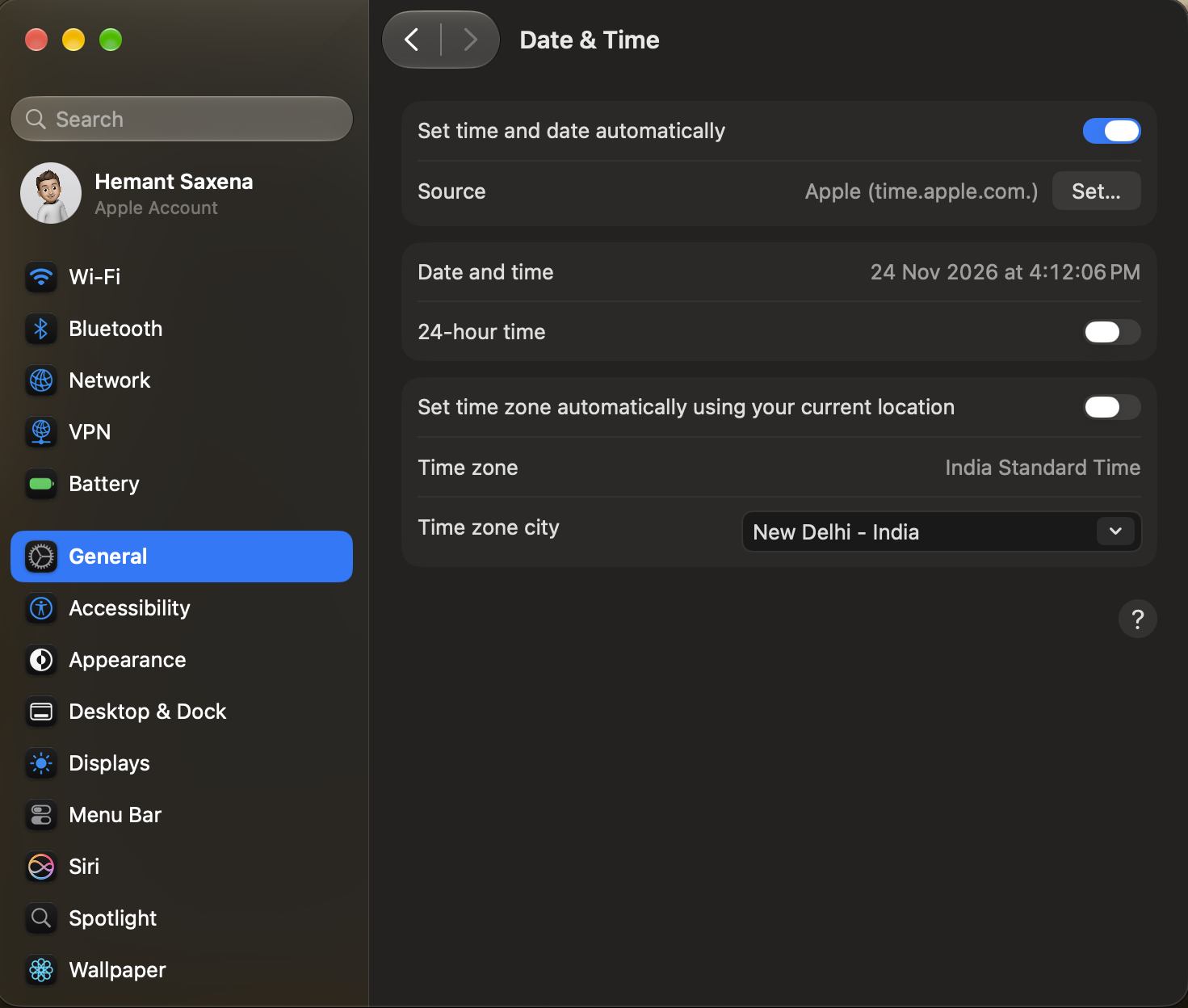
Once you’ve made the changes, restart your Mac and try connecting to the App Store or iCloud again.
3. Change Your DNS Servers
If your date and time are correct, the next thing worth investigating is DNS.
Think of DNS (Domain Name System) as the internet’s phone directory. When you enter a website address or an application tries to contact an online service, DNS helps translate that human-readable address into the numerical IP address computers use to communicate.
Your internet service provider (ISP) generally supplies DNS servers automatically. Most of the time, they work without any intervention. Occasionally, however, your ISP’s DNS servers might have trouble resolving certain addresses or responding reliably.
Changing to a public DNS service is a useful troubleshooting step.
Two popular alternatives are:
| DNS provider | Primary DNS | Secondary DNS |
|---|---|---|
| Cloudflare | 1.1.1.1 | 1.0.0.1 |
| 8.8.8.8 | 8.8.4.4 |
You only need to choose one provider.
How to change DNS on newer versions of macOS:
- Click the Apple menu and open System Settings.
- Select Network from the sidebar.
- Select your active Wi-Fi connection.
- Click Details.
- Open the DNS section.
- Under DNS Servers, click the + button.
- Enter the new DNS addresses, one at a time.
- Click OK, followed by Apply if that option appears.
Using an older macOS version such as High Sierra?
The steps are slightly different:
- Open System Preferences.
- Select Network.
- Choose your active Wi-Fi connection.
- Click Advanced.
- Open the DNS tab.
- Click the + button and enter your preferred DNS addresses.
- Click OK, followed by Apply.
You can leave the existing DNS entries in place while testing the new ones. If the problem persists, you can always remove the manually added addresses and return to your original configuration.
Apple also provides an official guide to changing DNS settings on a Mac. Apple Support+1
4. Check Your VPN, Firewall and Router Security Settings
Sometimes, the problem isn’t your internet connection but something inspecting or filtering the traffic travelling through it.
VPN applications, third-party antivirus software, network monitoring tools and router-level security features can interfere with connections to Apple services.
Apple itself acknowledges that third-party security software can prevent devices from accessing services such as the App Store and iCloud. Apple Support (IN)
Here’s what you can investigate.
Check VPN and security applications
If you’re using a VPN, temporarily disconnect it and try accessing the App Store again.
Also check whether you have installed:
- Third-party antivirus software.
- Internet security or web-filtering applications.
- Network monitoring or parental-control software.
- Custom proxy or traffic-filtering applications.
Temporarily disable the relevant filtering feature, where safe to do so, and test the connection. If that fixes the problem, investigate the application’s settings rather than leaving your security protection disabled.
Check your Mac’s firewall
On newer macOS versions, open:
- System Settings.
- Network.
- Firewall.
Check whether any custom application rules are blocking connections.
On older versions, the firewall settings are generally under System Preferences > Security & Privacy > Firewall.
One important distinction: macOS’s built-in application firewall primarily controls incoming connections. Turning it off is not a recommended first-line solution for problems connecting to Apple’s online services. Apple Support (IN)+1
Check your router’s security settings
If the problem occurs exclusively on your home network, log in to your router’s administration interface.
Look for settings related to:
- Parental controls.
- Website or domain filtering.
- DNS filtering.
- Traffic inspection.
- Network-wide ad blocking.
Some routers and security services allow you to block particular websites or categories of online traffic. If Apple-related domains are being filtered, the App Store and iCloud might fail even though ordinary websites continue working.
Rather than disabling the router’s entire firewall, temporarily adjust the specific filtering feature you suspect and test again.
If your router is managed by your ISP, you might need to contact its support team for assistance.
5. Check for Captive Portals and Wi-Fi Isolation
Here’s another possibility that’s easy to overlook: your Wi-Fi network might require an additional sign-in or authorization before allowing unrestricted internet access.
This is common on hotel, airport, office and public Wi-Fi networks, where you might need to accept terms and conditions or enter a password through a browser page.
These are known as captive portals.
If your router or network has recently been reconfigured, check whether any sign-in or authorization page is waiting for you. Open Safari and visit a regular website to see whether a login or acceptance page appears.
There’s another router setting worth knowing about: AP Isolation, also called Client Isolation or Wireless Isolation.
This feature prevents devices connected to the same Wi-Fi network from communicating directly with each other. It’s commonly used on guest networks to improve security.
However, there’s an important distinction here. AP Isolation generally affects local device-to-device communication, including features such as Bonjour discovery and AirPlay. It does not normally prevent your Mac from connecting to Apple’s internet servers. So, don’t rush to disable it if your only problem is accessing iCloud or the App Store.
If AirPlay, printer discovery or other local network features are also malfunctioning, it’s worth checking.
To investigate:
- Open your router’s administration page using its local address (often something like
192.168.1.1). - Sign in using your router administrator credentials.
- Look under Wireless, Wi-Fi or Security settings.
- Find an option named AP Isolation, Client Isolation or Wireless Isolation.
- Check whether it’s enabled, particularly if you’re using a guest network.
The exact location and terminology depend on your router manufacturer.
6. Restart Your Router and Test Another Device
If none of the above has helped, try restarting your router.
It’s a simple step, but routers can occasionally develop temporary connection problems, and a restart can clear some of them.
Here’s what to do:
- Save any ongoing work on your Mac.
- Switch off your router and modem, if they’re separate devices.
- Wait approximately 30 seconds.
- Turn them back on.
- Give the internet connection a few minutes to become available.
- Reconnect your MacBook to Wi-Fi and test the App Store and iCloud.
You should also try connecting another Apple device to the same Wi-Fi network, if available.
If multiple devices experience the same problem, your router or internet service provider becomes a more likely suspect. If only your MacBook is affected, investigate its VPN, security software and network configuration.
Apple also recommends restarting your networking equipment and testing another network when troubleshooting connectivity problems. Apple Support (IN)+1
Wrapping Up
When your MacBook can access the internet but refuses to connect to Apple’s services, it’s tempting to blame macOS, an ageing Mac or even Apple’s support policies.
But if everything works perfectly on your office Wi-Fi or mobile hotspot, your home network deserves a closer inspection.
Start with the basics: check Apple’s service status, verify your Mac’s date and time, try another DNS provider, and investigate VPNs and network filtering settings. If necessary, restart your router and contact your ISP.
One final thing worth remembering: macOS High Sierra 10.13.6 is no longer a supported, up-to-date operating system. If your Mac supports a newer macOS release, upgrading is advisable for security and compatibility reasons.
You don’t necessarily need to replace your MacBook just because the App Store refuses to cooperate. Sometimes, the culprit is sitting quietly in your router’s settings, waiting to be discovered.