

If you use an iPhone every day, chances are you’ve mastered the usual copy-and-paste routine i.e., tap, hold, select, copy, then repeat the whole process to paste. It gets the job done, but Apple has a much faster trick hiding in plain sight. It’s one of my favorite iPhone shortcuts and is called as the three-finger pinch gesture. It lets you copy and paste text, photos, and other supported content using nothing more than your fingers. Once you get the hang of it, you’ll wonder why you’ve been taking the scenic route all this time.
How to copy and paste on an iPhone using the three-finger pinch gesture
The three-finger pinch gesture is one of those handy iPhone features that many people never discover. It’s built right into iOS, yet it’s easy to miss because Apple doesn’t exactly put up a giant neon sign saying, “Try pinching the screen with three fingers!”
The feature works across supported Apple devices, making it a quick alternative when you want to move content between your iPhone and iPad without relying on AirDrop. It isn’t designed to replace AirDrop for every situation, but it can feel faster when you’re already working within Apple’s ecosystem.
Before you begin, make sure your devices are:
- Signed in with the same Apple ID.
- Connected to Wi-Fi.
- Within Bluetooth range of each other.
- Running compatible software: iOS 10 or later on iPhone, iPadOS 13 or later on iPad, and macOS Sierra (10.12) or later on Mac.
- Handoff is enabled and Bluetooth is turned on.
Once everything is set up, you’re ready to try the gesture.
Step 1: Open the content you want to copy
Launch an app such as Photos, Notes, or Messages and open the photo, text, or other supported content you want to copy. Whether it’s an important screenshot, a shopping list, or that meme you absolutely must share, it all starts here.
Step 2: Pinch inward with three fingers
Place three fingers on the screen and pinch inward. If the gesture is recognized, you’ll see the Copy indicator appear near the top of the screen. Your selected content is now copied to the clipboard.
Step 3: Move to your destination
Pick up your iPad or another compatible Apple device and open the app where you want to paste the copied content. This could be Notes, Messages, Mail, or any other supported app.
Step 4: Pinch outward to paste
Place three fingers on the screen and spread them apart. The Paste indicator should appear, and your copied content will instantly show up in the document or message. If you’re pasting into a text field, tap inside it first and then perform the gesture.
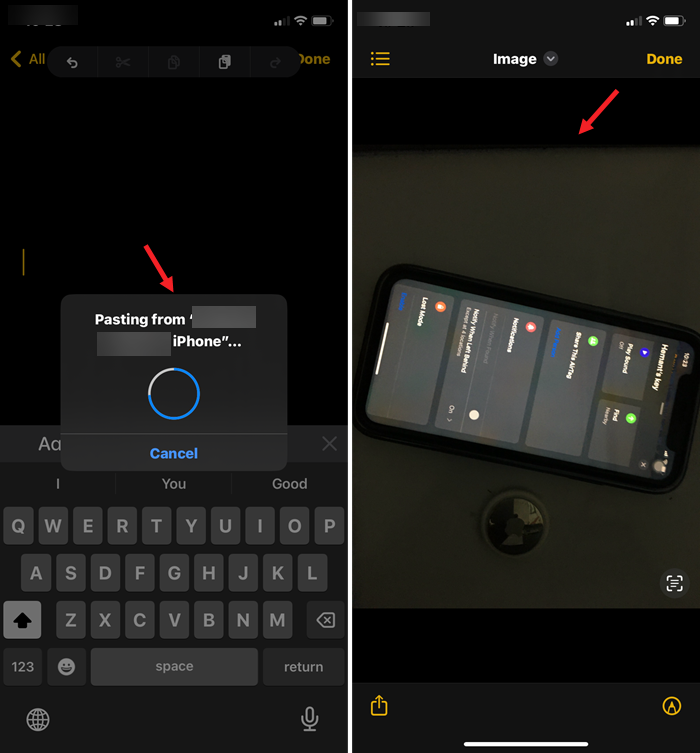
That’s all there is to it.
Why use the three-finger gesture?
The three-finger copy-and-paste gesture is a small shortcut, but it can save plenty of taps throughout the day. Once it becomes muscle memory, moving content between your Apple devices feels almost effortless.
It’s one of those hidden iPhone features that quietly improves your workflow. And unlike some “secret” tricks that require a dozen settings and a bit of luck, this one only asks you to remember what your fingers are already good at i.e., pinching.