When your AirTag flashes a low-battery warning, the solution seems almost too simple: pop off the cover, swap in a fresh battery, and carry on. After all, replacing the tiny coin-cell battery inside an AirTag takes less time than deciding where you last left your keys. But what happens when that routine battery change doesn’t go according to plan? You insert a new battery, expect everything to spring back to life, and instead your AirTag goes silent. It won’t connect, doesn’t show up properly in the Find My app, and suddenly the gadget designed to help you find lost items seems to have lost itself. It’s a frustrating situation because there’s no obvious reason for it. You haven’t dropped the AirTag, damaged it, or changed any settings. All you did was replace the battery.
The good news is that this problem is more common than you might think, and in many cases, the fix is surprisingly simple. Before you assume your AirTag is defective or start shopping for a replacement, there’s a quick trick worth trying that can often bring it back to life in minutes. In this airtag not connecting after battery change guide, I’ll show you exactly why AirTag is not connecting to iPhone after battery change and the simple workaround that can get it reconnecting to the Find My app again.
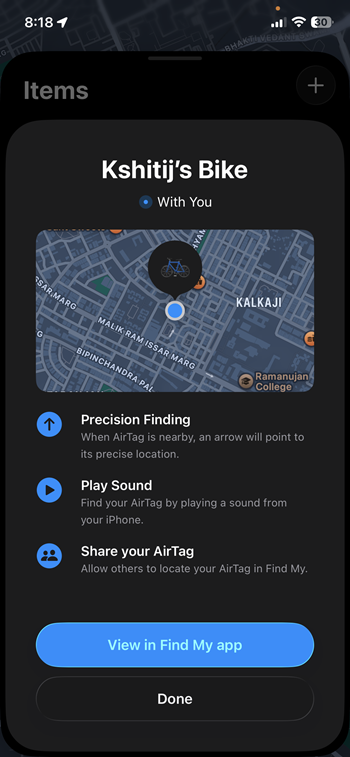
How to fix AirTag stops responding after a battery change
This issue occurs because the AirTag needs to be properly reset after a battery replacement.
To reset your AirTag, press down on the polished stainless-steel battery cover and rotate it counterclockwise until it stops turning. Remove the cover and take out the battery.
Insert the battery again and press down on it for about two seconds until you hear a sound. That sound confirms the battery is making contact and powering the AirTag.
Here’s where the trick comes in. Remove the battery and repeat the process four more times. Each time, reinsert the battery and press down until you hear a sound. By the end, you should have heard a total of five sounds.
Don’t be alarmed if this feels a little repetitive. It can seem like the AirTag equivalent of “have you tried turning it off and on again?”, except Apple actually wants you to do it five times.
Pay close attention to the fifth sound. It will be different from the previous four chimes. This distinct sound indicates that the AirTag has been successfully reset and is ready to be paired again. If the fifth sound doesn’t sound different, continue the process until it does.
Once the reset is complete, align the three tabs on the battery cover with the three slots on the AirTag. Press down on the cover and rotate it clockwise until it locks into place.
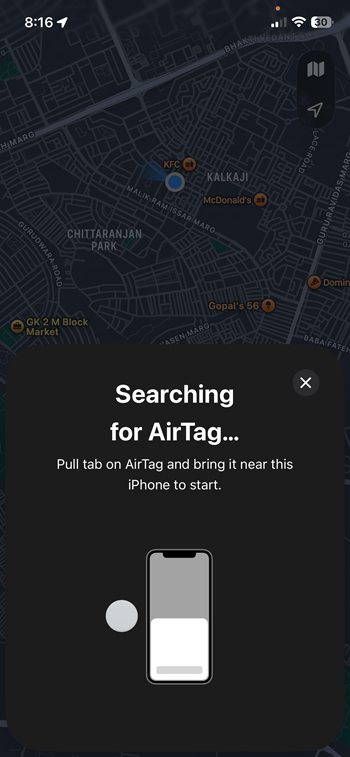
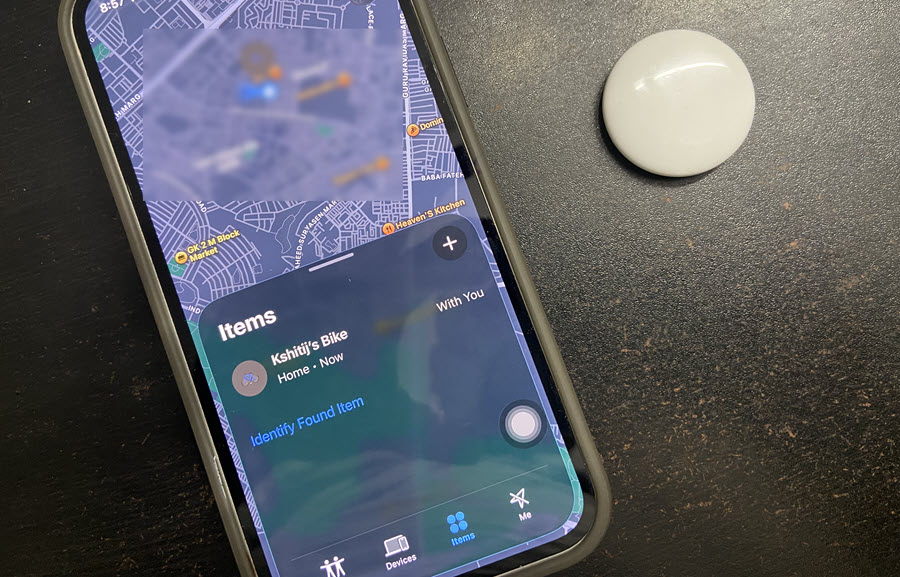
After that, open the Find My app and check whether your AirTag appears and connects normally.
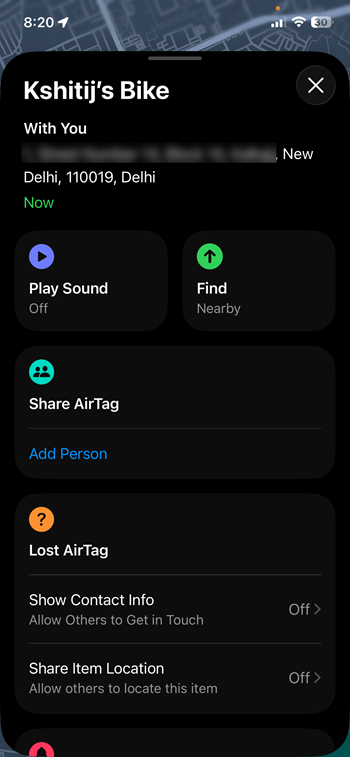
In many cases, this simple reset is all that’s needed to get an unresponsive AirTag working again after a battery change.