Do you remember the earlier post about the Back Tap feature in iOS settings that let you quickly perform common tasks using simple gestures, without digging through layers of menus? Android has a similar feature, and once I discovered it, I wondered how I managed without it till now. It’s called Quick Tap feature and lets you trigger a range of actions.
Once set up, you can control your phone using simple gestures. For example, you can trigger actions like taking a screenshot, turning on the flashlight, or opening an app instantly, without digging through maze of settings.
You’ll find the Quick Tap option in Settings. Open Settings on your Pixel phone.
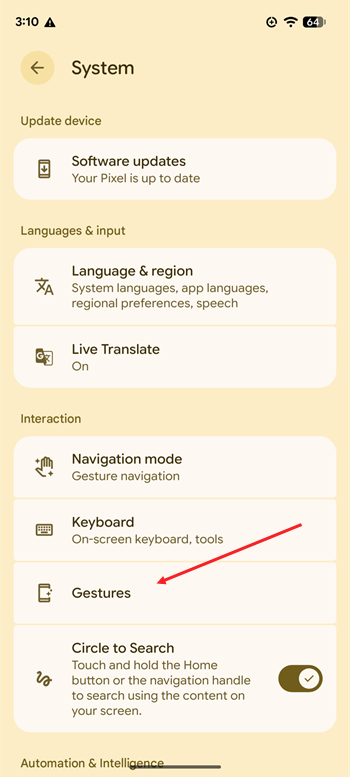
Go to System, then scroll to Gestures. Click to expand its settings.
Select Quick Tap to turn it on.
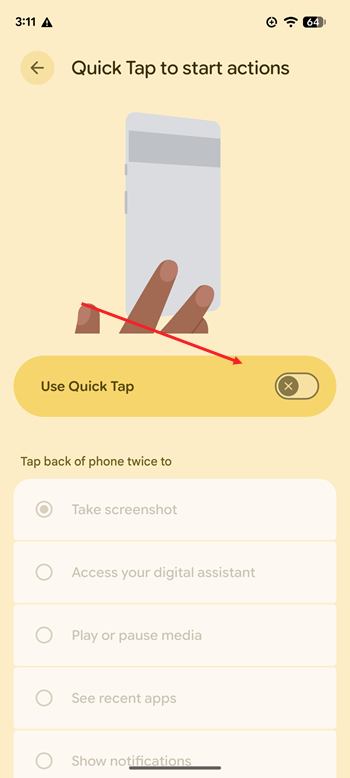
After that, choose what a double tap should do like,
- Take a screenshot
- Turn on the flashlight
- Launch an app
- Play or pause media or open Google Assistant.
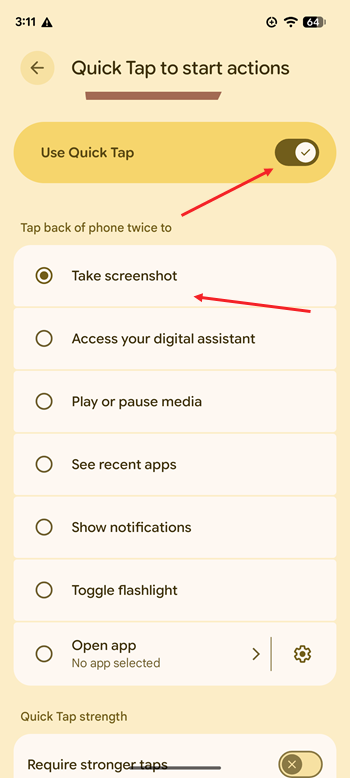
For me, I’ve set it to take a screenshot since it’s the feature I use most after handling calls. If you’d rather use it as a torch, just select the “Toggle torch” option. After that, a quick double tap on the back of your Pixel will turn on the light without unlocking the screen or digging through Quick Settings—handy when you’re trying to find something in the dark.
One thing I quickly learned is that sensitivity isn’t just a minor setting. It actually changes how well Quick Tap works day to day. And surprisingly, your phone case has a big say in this. If you’re using a thick or rugged case, it can soften those taps just enough that the phone doesn’t always catch them, which can make the feature feel hit-or-miss at first.
If that happens, don’t assume Quick Tap is broken. Take a second to check what’s covering the back of your phone and nudge the sensitivity up a notch in settings. Once you dial it in, it starts to feel just right. Light taps are enough to trigger your chosen action, but it’s still smart enough not to go off accidentally while sitting in your pocket.
Before I started using Quick Tap, taking a screenshot meant doing that familiar two-button dance which involved pressing the power and volume-down keys at the same time. It still works, but it’s not exactly graceful, especially when you’re holding the phone in one hand or operating it in a one-handed mode and trying to catch something before it disappears.
With Quick Tap turned on, it feels almost effortless. I just double-tap the back of the phone, and the screenshot is done. No shifting grip, no missed timing. After a few days, I stopped fumbling altogether and it has become my second nature. If you’ve ever used Back Tap on an iPhone, you’ll immediately get how convenient this feels.