Have you ever saved a QR code image to your phone and then wondered how you’re supposed to scan it? Your smartphone can instantly read a QR code through the camera, but things get confusing when the code is already sitting in your photo library. It’s a surprisingly common problem many people run into but we have the solution. This post explains exactly how to scan a QR code from a screenshot on your iPhone.
Scan a QR code from a screenshot on your iPhone
If you use an iPhone, you’ll notice Apple handles this a little differently and once you know where to look, you’ll have a handy trick up your sleeve. For reference, I’m using the current iOS version on an iPhone 17 for this walkthrough.
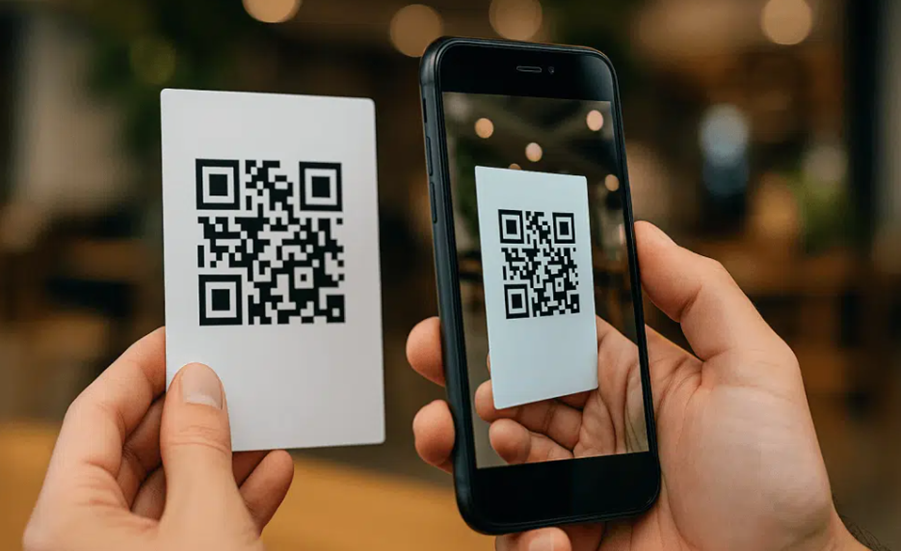
Here’s a photo I took of Google Page that had a a QR code printed on it.
On the iPhone, images open in the aptly named Photos app. But when I first opened the picture, there was no visible outline, link, or scan button anywhere on the screen. Even tapping the image only brought up the usual share and edit controls, none of which helped here.
The trick is surprisingly hidden. Just tap and hold directly on the QR code inside the image. After a second or two, the Photos app analyzes the picture, recognizes the embedded QR code, and instantly brings up a menu of actions.
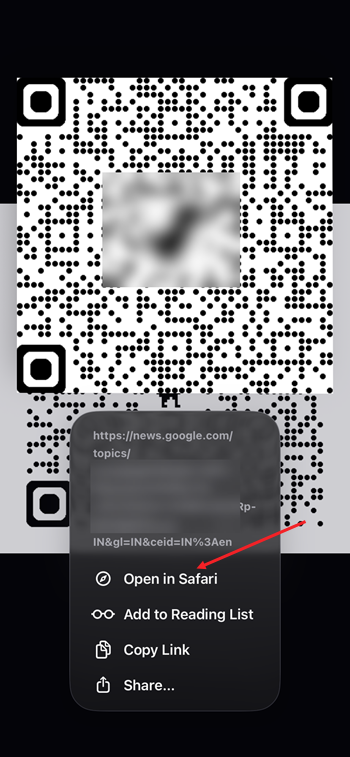
That’s it. Tap Open in Safari, and the QR code link will open immediately.

It can feel a little strange that your iPhone seems smarter while taking a photo than when viewing one already saved in your library, but that comes down to how the Camera app works. While you’re framing a shot, the system is constantly analyzing the scene for color balance, exposure and other details. So recognizing patterns like QR codes in real time is a natural extension of that process.